Crop PNG images online
Open the crop workspace as soon as your image is ready.
Use common image formats and continue adjusting the canvas and export settings.
How it works
- 1
Add an image
Choose a PNG, JPG, or WebP image to open the crop workspace.
- 2
Set the crop area
Adjust the crop bounds to keep the part of the image you need.
- 3
Preview and export
Review the new canvas and export it. Cropping does not remove the background.
Common use cases
Product composition
Remove excess margins so a product stands out in a listing image.
Social media images
Reframe an image for a specific post or layout.
Trim transparent canvas
Reduce excess transparent margins; this is different from removing a background.
Profile and ID framing
Frame a subject for an avatar or ID-photo layout; cropping does not replace the background.
Consistent image ratios
Prepare consistent framing for product listings, article thumbnails, or social layouts.
See the workflow
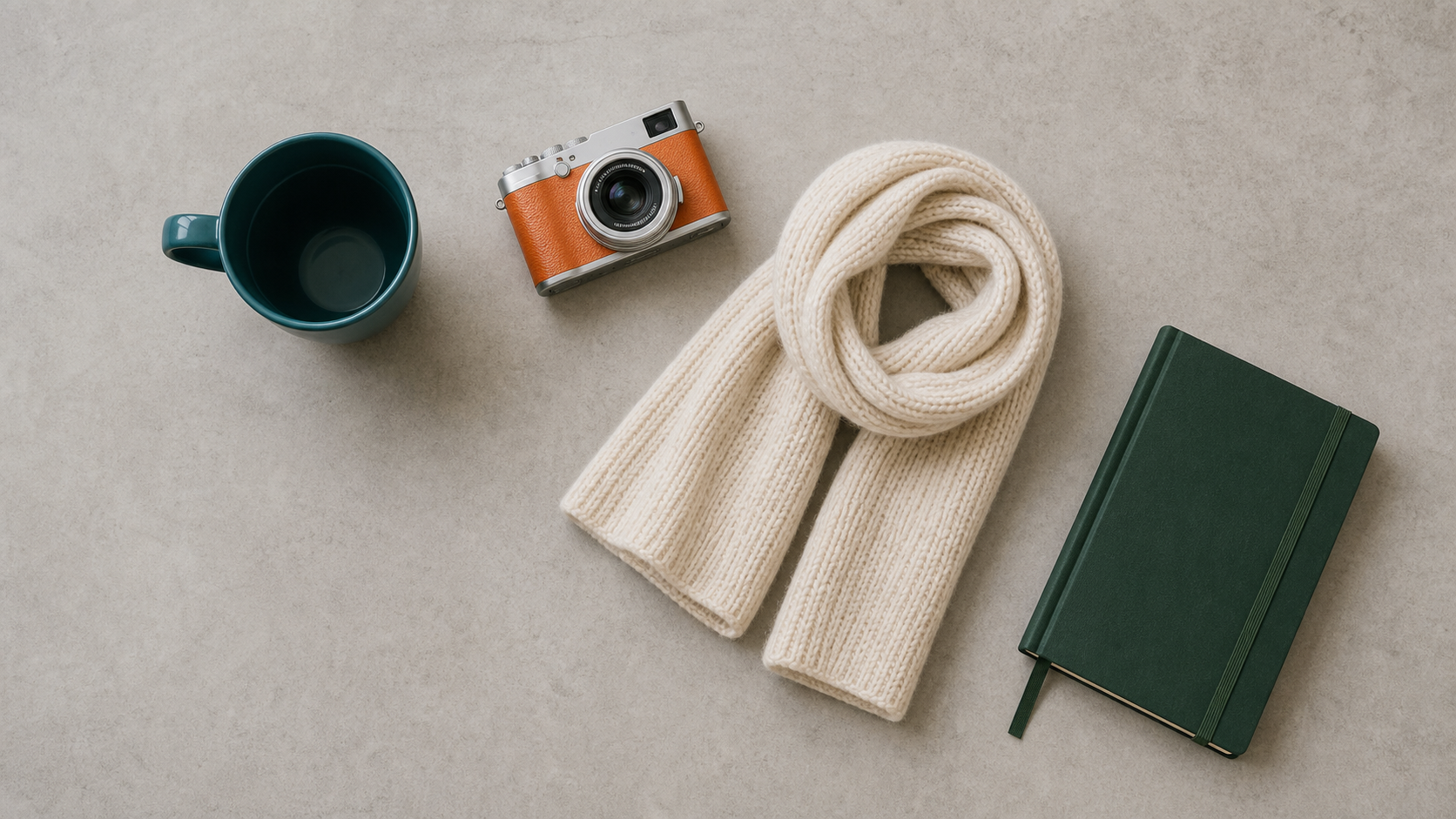
Examples illustrate the workflow; results depend on the source image.
Cropping vs. background removal
Cropping changes the canvas bounds. It does not identify a subject or make a white or other background transparent. Use background removal for transparency.
If the subject looks too small after cropping, refine the crop and composition. Export clarity also depends on source resolution and scaling.
Frequently asked questions
Does cropping make a PNG background transparent?+
No. Cropping changes the canvas bounds. Use a cutout or background-removal tool to remove a background.
Can I crop transparent margins around a PNG?+
Adjust the crop bounds to reduce the canvas. Cropping does not alter the subject or automatically detect transparent bounds.
Will cropping improve image clarity?+
Cropping does not add pixels. Clarity after enlargement still depends on the source resolution and scaling.
Can I crop a PNG from my phone?+
Choose an image from your device to open the crop workspace, then review the framing and format before export.
Related tools
Explore other published image tools.