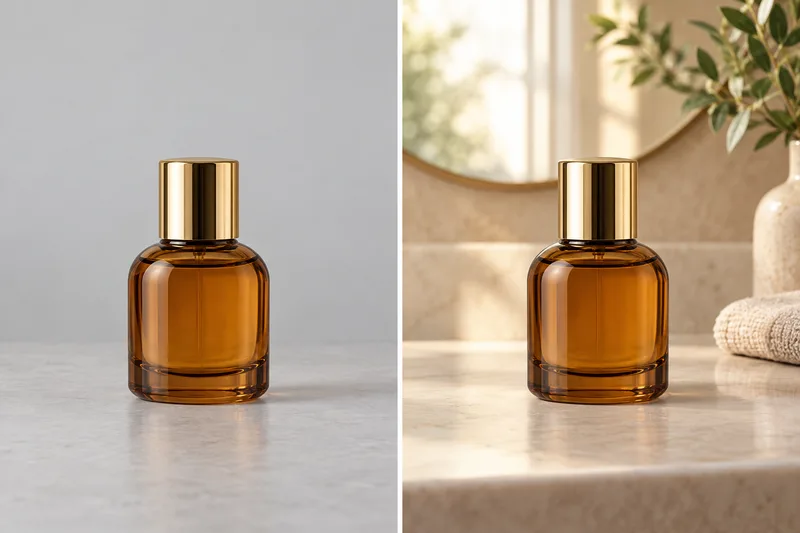
Enlarge images and enhance details
Useful for low-resolution images or images that need larger display sizes.
Open the upscaler after selecting an image.
How it works
- 1
Upload an image
Choose a low-resolution image or one that needs a larger output size.
- 2
Choose upscale settings
Select an available scale factor and output dimensions.
- 3
Inspect and export
Zoom in on texture, text, and edges before downloading the result.
Common use cases
Larger layouts
Prepare a larger version for an image that needs more display pixels.
Older or low-resolution assets
Try to improve how a low-resolution asset looks on screen.
Product details
Create a larger product image for page display or detail views.
Old photos and small thumbnails
Try enlarging old images or thumbnails while remembering reconstructed details are not original captured information.
Prepare for print or large displays
Prepare more pixels for a larger layout, then inspect text, texture, and fine lines before use.
See the workflow
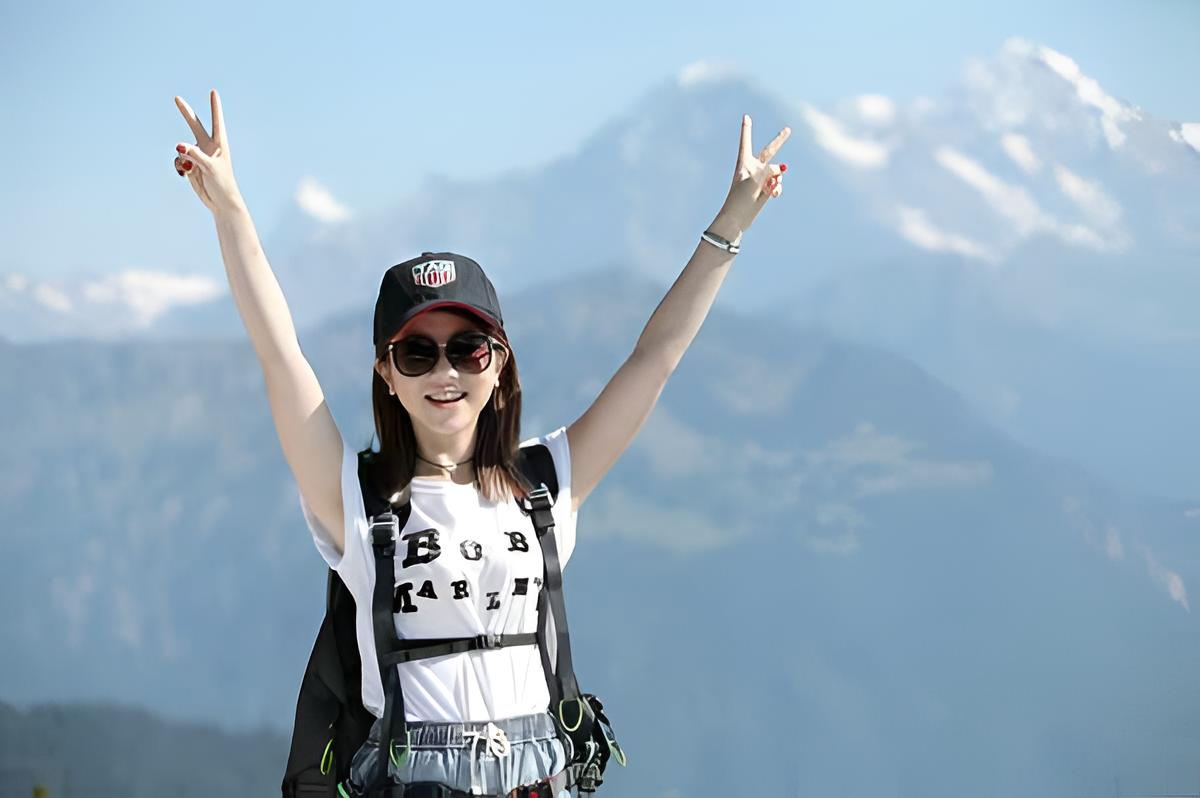
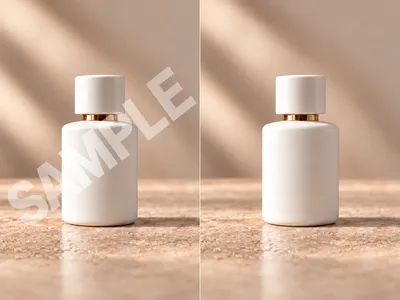
Examples illustrate the workflow; results depend on the source image.
Upscaling cannot guarantee real detail recovery
AI upscaling may infer or reconstruct texture; it cannot guarantee recovery of original photographic detail. Check text, fine lines, and repeating patterns carefully.
Results depend on source clarity, compression artifacts, and subject size. Compare the source and output before using important images.
Frequently asked questions
Can upscaling recover details that were never in the source?+
AI may infer or reconstruct texture, but cannot guarantee recovery of real captured details. Compare important images, especially text and patterns.
Will every blurry image become clear after upscaling?+
No. Blur, compression artifacts, and subject size affect results. Preview before deciding whether to use the output.
Is an upscaled image suitable for printing?+
It depends on pixel dimensions, print size, and detail quality. Inspect text, edges, and textures at the intended print size.
Should I remove the background or upscale first?+
It depends on the goal. Remove the background first for a transparent cutout; for an overall enlargement, preview and inspect the edges.
Related tools
Explore other published image tools.