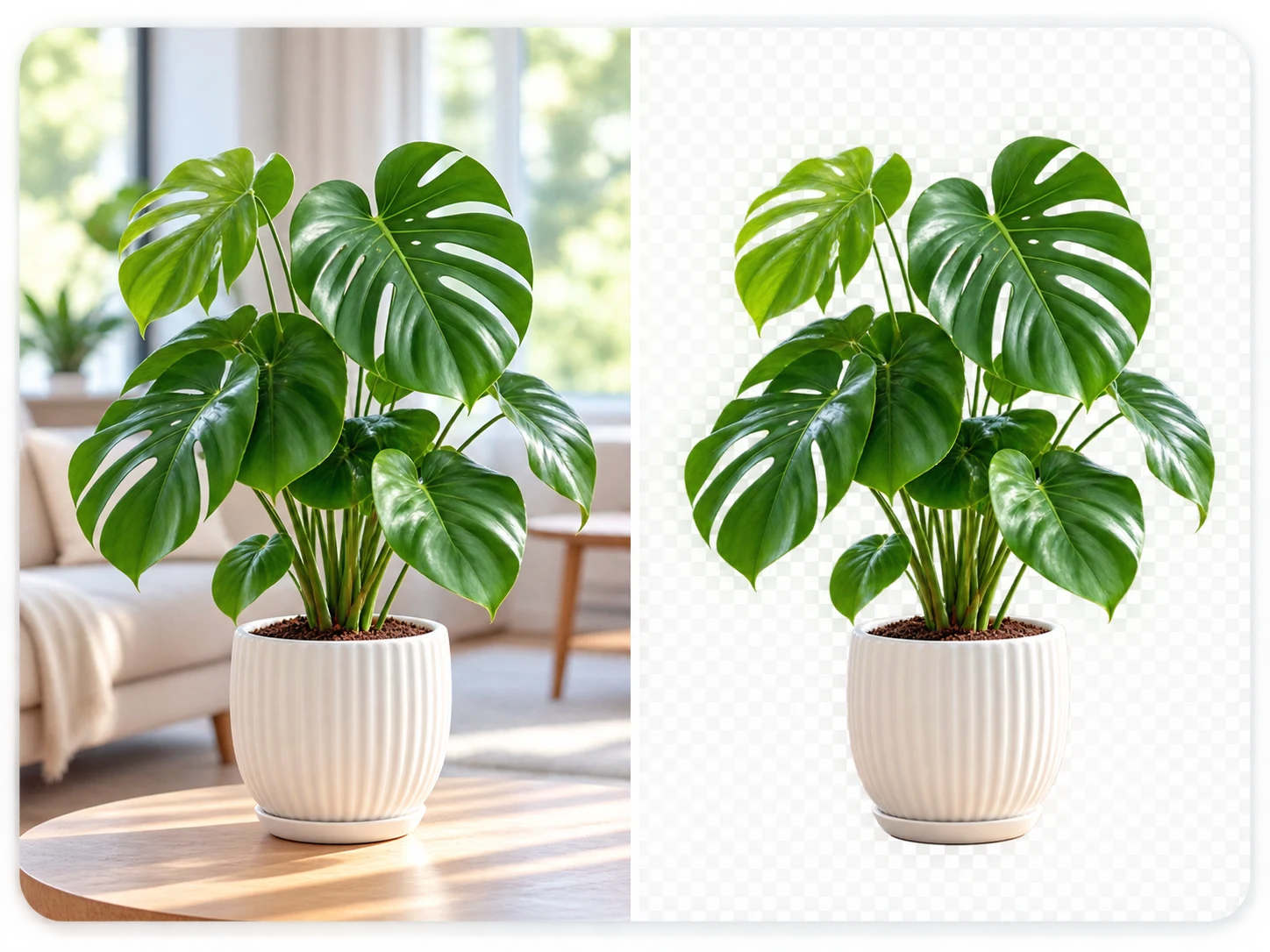
Solid-color background processing
Works best with uniform backgrounds; select the matching background color.
Export transparency or continue replacing the background.
How it works
- 1
Upload a solid-background image
Choose an image with a relatively uniform white, black, green, or blue background.
- 2
Select the background color
Choose the color that matches the source background and preview the subject edges.
- 3
Refine and export
Check for subject areas accidentally removed due to similar colors, then export or replace the background.
Common use cases
White-background products
Turn consistent white-background product images into transparent assets or new scenes.
Green and blue screens
Process images photographed against a solid green or blue screen.
Icons and stickers
Try removing uniform color areas around icons, marks, or stickers.
Recolor white- or black-background product images
For images with a uniform background, key out the matching color and set the desired replacement.
Green- and blue-screen assets
Try keying a uniform green or blue screen, then check for unwanted removal when subject colors are similar.
See the workflow


Examples illustrate the workflow; results depend on the source image.
Limits of solid-color keying
When subject and background colors are similar, keying may affect matching areas in the subject. Shadows, gradients, and reflections also complicate edges.
For complex or highly varied backgrounds, use AI background removal rather than applying solid-color keying to every image.
Frequently asked questions
What backgrounds are suitable for color keying?+
Uniform backgrounds with clear contrast from the subject are generally more suitable. Review complex or low-contrast images carefully.
Can green- or blue-screen keying remove subject colors?+
It may affect similar green or blue areas in the subject. Review the subject edges and matching-color regions afterward.
Can I replace the background after color keying?+
Choose an available solid color in the workspace. Use an AI background tool if you need a generated scene.
Should I use color keying or AI background removal?+
Try color keying for a uniform solid background. For subjects against complex scenes, an automatic background-removal workflow is often a better match.
Related tools
Explore other published image tools.